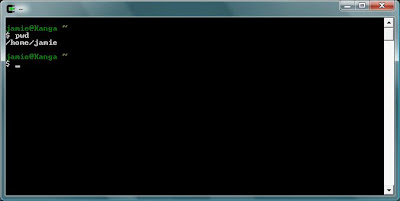
| Windows DOS | Linux/Cygwin |
|---|---|
| dir | ls |
| cd | pwd |
| cd [path] | (same) |
| cls | clear |
| copy [old] [new] | cp [new] [old] |
| del [file] | rm [file] |
| move [old] [new] | mv [old] [new] |
| tree | tree (Linux only) ls -R |
| mkdir [dir] | (same) |
| rmdir [dir] | (same) |
| help [cmd] | man [cmd] |
| type [file] | cat [file] |
| date /t | (same) |
| time /t | date |
| netstat -an | (same Linux only) |
| netstat -rn | (same Linux only) |
| ipconfig /all | ifconfig -a (Linux only) |
Friday, September 19, 2008
Linux vs Windows DOS commands
Windows DOS commands
| dir | list out files |
| cd | show current working directory |
| cd [path] | change to [path] directory |
| cls | clear screen |
copy [old] [new] | copies the old file to new |
| del [file] | deletes the file |
move [old] [new] | moves the old file to new |
| tree | shows the tree of the current directory |
| md | creates new directory |
| mkdir | creates new directory |
| rmdir [dir] | deletes directory dir |
| help | lists help information |
| type [file] | outputs file contents to screen |
| date /t | outputs date to screen |
| time /t | outputs time to screen |
| netstat | gives us network connection information |
netstat -an | -a: all connections -n: IP addresses |
netstat -rn | -r: routing information |
ipconfig /all | gives us network information |
Thursday, September 18, 2008
Talk on 9/24: Visual Forensic Analysis
The Center for Cybercrime Studies
The John Jay College of Criminal Justice
Presents
Visual Forensic Analysis
Speaker: Greg Conti
Computer Science Department
United States Military Academy
For decades hex was the common tongue of reverse engineers and forensic analysts, but we can do better. Hex editors are the Swiss Army knives of low level analysis and have evolved significantly, but are now at a local maximum. With the tiny textual window hex provides, it is difficult, if not impossible to understand the big picture context and inner workings of binary objects - files, file systems, process memory, and network traffic. While there are helpful tools to analyze the special case of executable files, little work exists to help address the general case of all types of binary objects. This talk presents visual approaches to improve the art and science of forensic analysis, diffing, and reverse engineering, both in the context independent case where little is known about the raw structure of the binary data and at the semantic level where external knowledge can be used to inform analysis. If you are faced with low level analysis tasks, you should attend this talk.
Greg Conti is an Assistant Professor of Computer Science at the United States Military Academy. His research includes security data visualization and web-based information disclosure. He is the author of Security Data Visualization (No Starch Press) and the forthcoming Googling Security (Addison-Wesley). His work can be found at www.gregconti.com and www.rumint.org.
Date: September 24, 2008
Time: 3:30 PM
Location: Mathematics Conference Room - 4238N
445 West 59th Street, New York City 10019
RSVP: Nicole Daniels at 212-237-8920 or email ndaniels@jjay.cuny.edu.
For additional information please contact Professor Doug Salane, Director of the Center for Cybercrime Studies, at 212-237-8836 or email dsalane@jjay.cuny.edu.
Sunday, September 14, 2008
Linux commands
C:\Documents and Settings\jlevy\My Documents
However in Linux, there are no drive letters and the slashes go a different direction:
/home/faculty/jlevy
Everything in the file system is mounted after the root directory, which is just a forward slash - /
There are often several users on the same Linux server and each user has his/her own home directory (folder) that has the same name as the username. You can see above that I have my home directory with the same name as my username: jlevy. It is inside that folder that I have permission to create and use new files.
We also learned that when we log in, we can see who we are and which directory we are in by looking at the prompt:
[jlevy@kanga ~]$
You can see my username and the tilde ~ which indicates that I am in my home directory. After you log in, the commandline is simply waiting there for you to issue it a command.
Basic Commands
In the last class we covered some basic Linux commands such as:
passwd changes your password
clear clears the screen
pwd print working directory
tree print out a tree of all
files from location
mkdir create (or make) a new directory
rmdir [directory] remove directory
rm [file] remove file
rm -Rf [dir] remove directory and all files
inside DANGEROUS!
touch [file] create (or update) a file
ls list out files
ls -a list out all files including
hidden files
ls -l list out files with permissions
ls -al list out all files with permissions
cd [path] change directory to [path]
cp [oldfile] [newfile] copy the oldfile to the newfile
or location
mv [oldfile] [newfile] move the oldfile to the newfile
or location
chmod [perms] [file] change the mode (permissions)
to perms for file
pico [file] open file for editing with pico
text editor
exit end session (logout)
One thing to note about Linux: Commands ARE case sensitive so you have to type them in all lower case!
Computer basics
An Operating System (OS) is the a software program that works as the interface between the user and the hardware. Examples of Operating Systems are Windows XP/Vista, Linux, Mac OS/X, and Unix. Modern Operating Systems support multiple programs (processes) and multiple users at one time. The OS manages everything on the computer such as: programs that are running (processes), files that are open, network connections, users who are logged on (and their processes, files, etc), memory usage, etc.

A process is a program that is currently running (executing) on a computer. Every process running has a unique number associated with it called a Process Identifier (PID). This allows the Operating System to keep track of each process. A process that is running is currently in main memory or Random Access Memory (RAM).
Random Access Memory (RAM) or main memory is a volatile form of computer storage that for items that are currently being used on the computer. Processes (and data needed by the processes) that are currently running must be in RAM in order for them to run.

A Hard Disk or Hard Drive is a piece of hardware that is used for longterm storage. Every time you save documents and pictures they are on the hard drive.

A Central Processing Unit (CPU) is hardware that is the brain of the computer. All instructions by programs running on the computer are processed by the CPU.
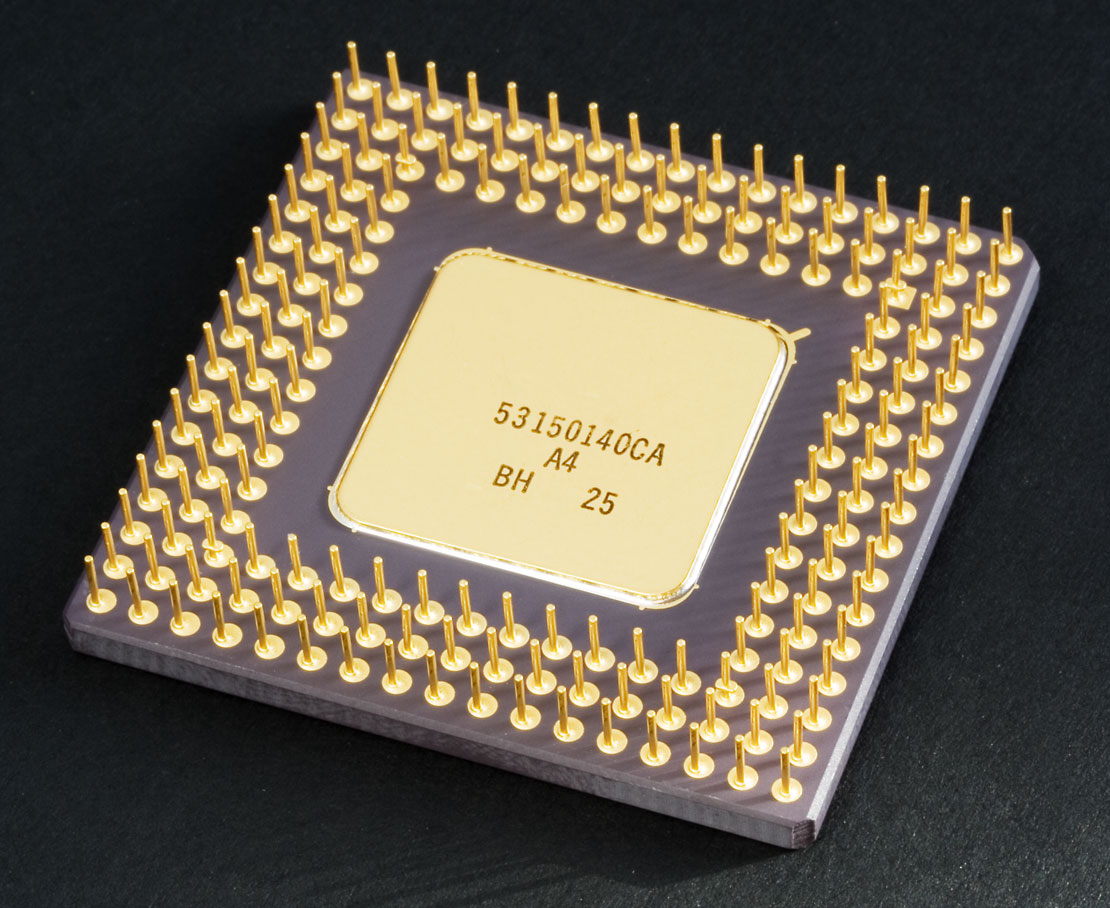
A user is someone who is currently using the computer or programs on the computer.
A programmer is someone who creates computer programs. Programs are created using programming languages. Some example programming languages are C, C++, Java, Perl, and Python.
Binary is a numerical system that contains only 1's and 0's and is the basis representing ``On'' and ``Off'' switches in computer circuits. This is what the computer understands and speaks as a native language. Most computers use the ASCII encoding scheme to represent characters. You can find a table of these values here.
Hex (short for hexadecimal) is a base-16 numerical system that contains the characters 0-9 and A-F.
A Network Interface Card (NIC) is a piece of hardware that allows a computer to communicate on a computer network.
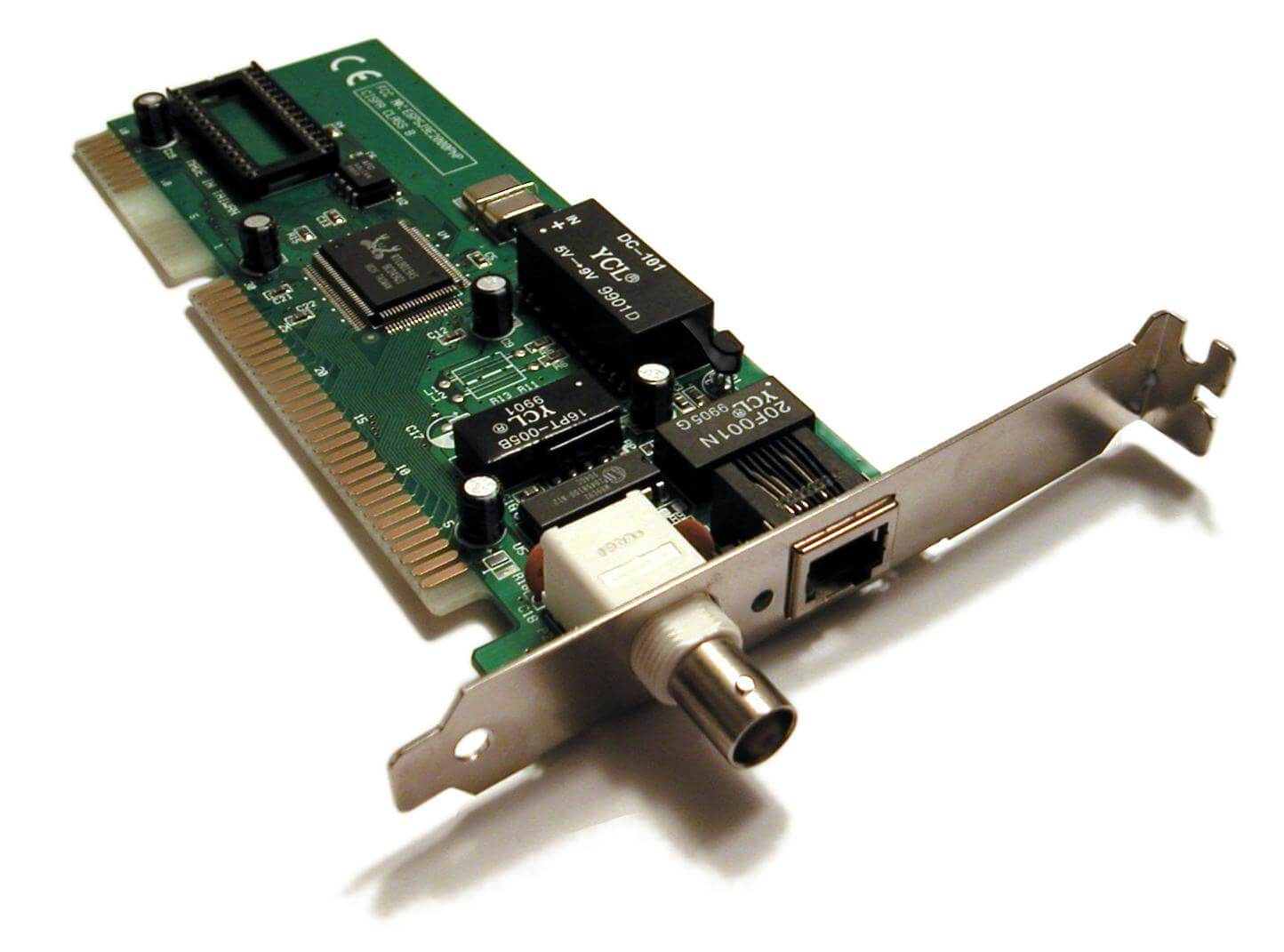
An Internet Protocol (IP) address is a numerical address for a computer on a network. An example of an IP address might be: 192.168.0.99
A Media Access Control (MAC) address is the hardware address of a computer on a network. It is assigned by the maker of the computer's NIC card. An example of a MAC address might be: 00:3G:2D:10:AF:7E
A Port is the result of a program on a computer that is connected to the network. This results in an ``opening'' on the computer to the network. There are 65536 ports numbered from 0 to 65535. Well known ports range from 0-1023, which means that we can usually tell which programs are running if we see these ports are open. This doesn't mean that these programs can change ports, however, just that they normally run on these known ports. Here you can find a list of known port numbers. Here is a look at nmap being used to see the open ports on a computer:
# nmap -O 192.168.0.10
Starting Nmap 4.52 ( http://insecure.org ) at 2008-09-10 00:14 EDT
Interesting ports on 192.168.0.10:
Not shown: 1709 closed ports
PORT STATE SERVICE
135/tcp filtered msrpc
137/tcp filtered netbios-ns
138/tcp filtered netbios-dgm
139/tcp filtered netbios-ssn
445/tcp filtered microsoft-ds
MAC Address: 00:XX:XX:AA:99:44 (Intel)
Device type: general purpose
Running: Microsoft Windows 2003|XP
Too many fingerprints match this host to give specific OS details
Network Distance: 1 hop
OS detection performed. Please report any incorrect results at http://insecure.org/nmap/submit/ .
Nmap done: 1 IP address (1 host up) scanned in 15.992 seconds
Transmission Control Protocol (TCP) is a connection oriented network connection (like a phone call). For more information see Wikipedia.
User Datagram Protocol (UDP) is a connectionless network connection (like the mail). For more information see Wikipedia
Live forensics tools
Once you have downloaded all of these tools create a folder on your machine in order to extract and keep them. For example: C:\forensic
Extract each of the zip files into this folder. If you need a zip program, you can download 7-zip for free. I actually recommend this program, since it can handle several archive/zip types. Though some of these zip files will automatically extract themselves into their own folders, some will not. So you might want to make a folder for each application prior to extracting the contents of the zip files.
More information is in the slides. More instructions soon...
Friday, September 12, 2008
Cygwin Installation
The setup file is here.
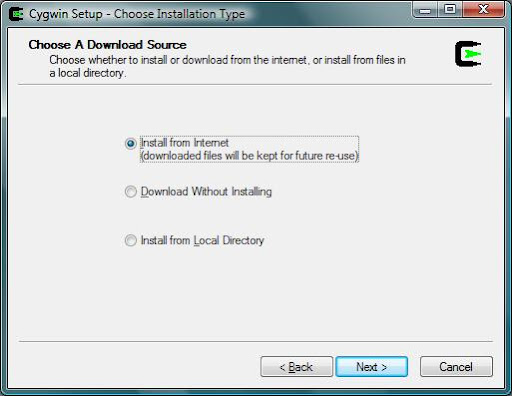
When you download setup, double click it. You should see the following:

Press ``Next'' and choose ``Install from the Internet'' :

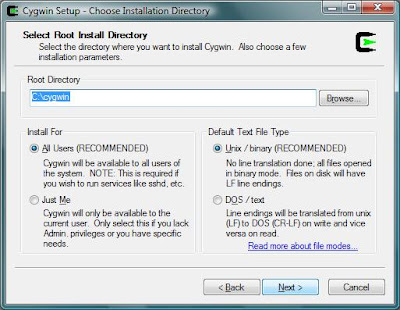
Choose where to install Cygwin (by default it is in C:\Cygwin):
![]() |
Cygwin will create a directory in which it will store the its files during installation. After installation you can delete the folder. The default location is the desktop:
![]() |
Select your internet connection. The default is OK:
![]() |
Select a mirror (mirrorservice.org is good):
![]() |
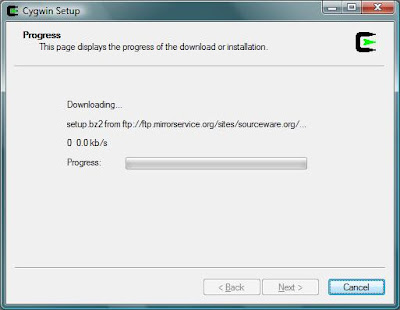
Press ``Next'' You should see the following:

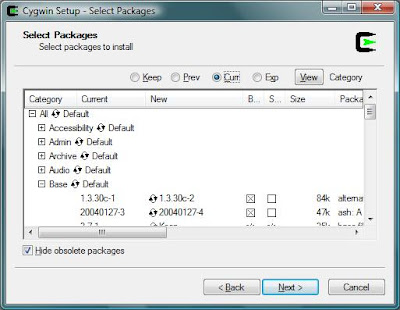
Next you will see a list of packages you can download. By default these are organized by category:
![]() |
If you press the plus signs on the left hand side, it will open up the category and you can select specific packages:
![]() |
Here is a list of packages you need organized by category:
- From the Base category
- Everything
- From the Devel category
- Gcc: C, C++, Fortran compilers
- gcc-mingw: Mingw32 support headers and libraries for GCC
- gcc2: Version X.XX.X [whatever is latest] of C, C++, Fortran compilers
- gdb: The GNU Debugger
- make: The GNU version of the `make' utility
- mingw-runtime: MinGW Runtime
- openssl-devel: The OpenSSL development environment
- From the Editors category
- Nano: A pico clone text editor with extensions [works like pico]
- vim: Vi Improved – enhanced vi editor
- From the Interpreters category
- Perl
- Python
- From the Utils category
- until-linux: Random collection of Linux utilities
- file
- ELFIO
- From the Text category
- less: A file pager program, similar to more(1)
After you have made your selections, press next for installation to begin. This part is the actual installation, and may take some time. Just let it finish. After it finishes you will be asked if you want to create shortcuts on the desktop. Make sure to click Finish.
Running Cygwin
When you run Cygwin for the first time, it might take a little longer to start up. This is because it is configuring
a few more files for your environment. Then you should get a command line prompt that looks like:
You are now able to work on your programs at home on your windows machines.