Showing posts with label tools. Show all posts

Wednesday, December 3, 2008

PtFinder update

I'm late in posting this (sorry about that again!) but here is a link to the new PtFinder which includes support for Vista memory dumps.

Vol2html Perl Script

Though it's a little late to post this, I thought I would in case you are interested: To make it easier for you to sort through the output of Volatility I've written a little perl script to create an html report of running processes, open files and dlls.

This is not finished as there is more information that I would like to correlate from the output of Volatility. But if you are somewhat curious, this is what I have so far: vol2html.pl. You can see an example report here. The output files for this report and the perl script are bundled together here. There is minimal error checking.

To use, first redirect the output of Volatility for pslist, dlllist and files to text files:

./volatility pslist -f mem.dd > pslist.txt
./volatility files -f mem.dd >files.txt
./volatility dlllist -f mem.dd >dlllist.txt


Then feed the perl script these files:

./vol2html.pl -pslist pslist.txt \
-files files.txt -dlllist dlllist.txt

Friday, October 31, 2008

Netcat

Sorry for the delay, here is the missing post of netcat videos.

Data transfer:


Full Screen

Running a command remotely:


Full Size

Sunday, October 5, 2008

Memory images

As we have already learned: we can copy all of physical memory from our computer using win32dd. This was part of your homework.

There are several practice images available online of different types of Windows OSes.

The image information for your lab is here:

[xp-laptop.tgz | xp-laptop.md5]

Some other things:

Volatility [direct download]
SID [direct download]
System call table [direct download | supporting library]
Windows messages [direct download]

The supporting library goes in the ``forensics/win32/'' folder under Volatility
All other plugins go in the ``memory_plugins/'' folder under Volatility

Sunday, September 14, 2008

Live forensics tools

Here is a list of tools that you will use for your Live Forensics homework:


Once you have downloaded all of these tools create a folder on your machine in order to extract and keep them. For example: C:\forensic

Extract each of the zip files into this folder. If you need a zip program, you can download 7-zip for free. I actually recommend this program, since it can handle several archive/zip types. Though some of these zip files will automatically extract themselves into their own folders, some will not. So you might want to make a folder for each application prior to extracting the contents of the zip files.

More information is in the slides. More instructions soon...

Friday, September 12, 2008

Cygwin Installation

For class we will use Cygwin which is a Linux-like environment for windows. Since most of you have Windows machines, this will allow you run tools that normally run under Linux/Unix environments.

The setup file is here.

When you download setup, double click it. You should see the following:


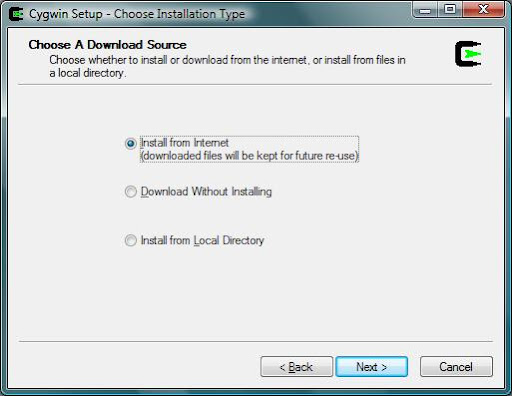
Press ``Next'' and choose ``Install from the Internet'' :


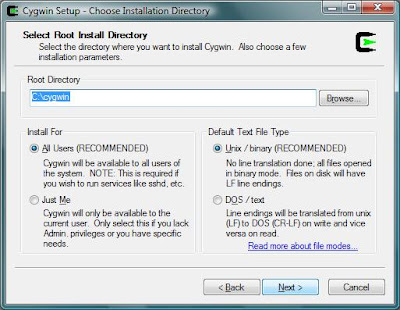
Choose where to install Cygwin (by default it is in C:\Cygwin):


Cygwin will create a directory in which it will store the its files during installation. After installation you can delete the folder. The default location is the desktop:


Select your internet connection. The default is OK:


Select a mirror (mirrorservice.org is good):


Press ``Next'' You should see the following:
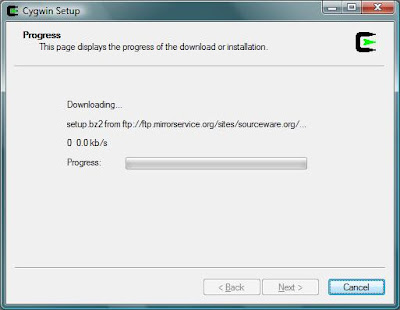


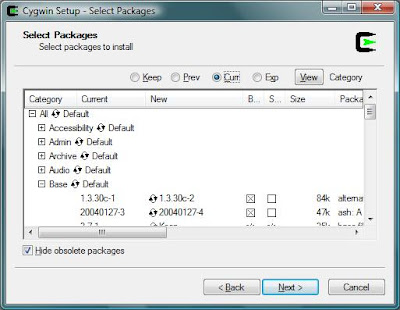
Next you will see a list of packages you can download. By default these are organized by category:


If you press the plus signs on the left hand side, it will open up the category and you can select specific packages:


Here is a list of packages you need organized by category:

    From the Base category
  1. Everything
    From the Devel category
  1. Gcc: C, C++, Fortran compilers
  2. gcc-mingw: Mingw32 support headers and libraries for GCC
  3. gcc2: Version X.XX.X [whatever is latest] of C, C++, Fortran compilers
  4. gdb: The GNU Debugger
  5. make: The GNU version of the `make' utility
  6. mingw-runtime: MinGW Runtime
  7. openssl-devel: The OpenSSL development environment
    From the Editors category
  1. Nano: A pico clone text editor with extensions [works like pico]
  2. vim: Vi Improved – enhanced vi editor
    From the Interpreters category
  1. Perl
  2. Python
    From the Utils category
  1. until-linux: Random collection of Linux utilities
  2. file
  3. ELFIO
    From the Text category
  1. less: A file pager program, similar to more(1)


After you have made your selections, press next for installation to begin. This part is the actual installation, and may take some time. Just let it finish. After it finishes you will be asked if you want to create shortcuts on the desktop. Make sure to click Finish.

Running Cygwin

When you run Cygwin for the first time, it might take a little longer to start up. This is because it is configuring
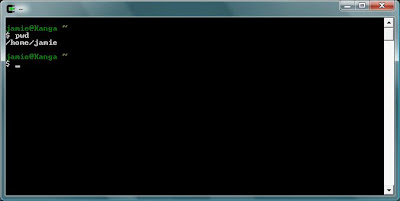
a few more files for your environment. Then you should get a command line prompt that looks like:

You are now able to work on your programs at home on your windows machines.